Whether you are practising in a family car or have just passed, sooner or later there is no instructor calling the next turn and you are on roads you have never driven. A sat nav takes away the "where am I going?" load so you can concentrate on driving safely. In my experience it is a very good aid, and pupils generally find following a sat nav easier than following road signs alone.
A sat nav on your driving test
Your test includes a section of independent driving, where you follow directions from a sat nav, traffic signs, or a mix of both. It lasts 20 to 35 minutes and can take up a large part of the test. The examiner sets the sat nav up for you and you cannot use your own.
You do not get to choose whether it is the sat nav or road signs. It really is pot luck what you get on the day, so practise both.
Do not worry that the examiner's sat nav will be a different make from the one you practised with. I have never had a pupil find the change of sat nav a problem. You are not changing settings, you are listening to directions and glancing at the screen, and every sat nav does that in much the same way.
How a sat nav helps you
A good sat nav gives you the same information three ways at once:
- You hear it. The spoken direction comes early, well before the junction or roundabout.
- You see it on the screen. At a roundabout, a Garmin sat nav shows a picture of the roundabout in the corner of the screen with your exit marked, for example the third exit to turn right. It also counts down the distance, such as 0.7 miles to the next turn, so you know how long you have before anything changes.
- You see it on the road. The direction signs and road markings confirm what the sat nav has told you.
When all three agree, you can plan early: the right lane, the right speed, the right gear, with time to spare.
A sat nav tells you where, not how
A sat nav might say "take the third exit". It does not tell you whether it is safe to go, whether the light has changed, or that a cyclist is on your left. You still read the signs and road markings and you still make your own decisions. Think Like a Driver explains how that independent thinking develops.
Roundabouts are the classic example. The sat nav gives you the exit number, the road markings tell you the lane. Our guide to approaching roundabouts covers lane choice in detail.
You are marked on your driving, not your navigating
This is the most important thing I tell my pupils about following directions, whether from a sat nav or road signs.
On your test you are not marked on how well you follow directions. You are marked on whether you drive safely. Going the wrong way is not a fault. Doing something unsafe to put it right is.
So if you end up in the wrong lane, for example on a multi-lane or spiral roundabout, stay in that lane unless you can change lanes safely. Take the exit your lane leads to. At the next roundabout or junction, the sat nav or the examiner will get you back on route. It does not matter if that happens twice. Staying safe matters every time.
A pupil of mine recently showed exactly why this matters. She was in the lane for the second exit when the signs showed she needed the third. She did the right thing and took the second exit. But because she felt she was now in the wrong position, she tried to move across before the next roundabout, which was only a short distance away. With her attention on changing lanes, she selected first gear instead of third. The car slowed sharply in lane one and it was recorded as a serious fault.
If she had stayed calm, she could have taken the wrong exit again at the next roundabout and let the sat nav reroute her. No fault at all. The mistake was not the navigation. It was letting the navigation take her attention away from driving the car.
Speed limits and your actual speed
Many sat navs show the speed limit for the road you are on. Some also show your actual speed, which is useful to have next to the limit. In my experience Apple Maps shows the speed limit but not your speed, while Garmin sat navs show both.
Your sat nav speed and your car's speedometer will often differ, usually with the sat nav showing a slightly lower number. When I ask pupils which is more accurate, most say the speedometer. In fact, with a good satellite signal, the sat nav's reading is often closer to your true speed. It works out your speed from satellite positioning, while a car speedometer is affected by how the manufacturer has set it up and things like tyre size and pressure. Speedometers are also designed never to show less than your true speed, so they tend to read a little high. If your sat nav loses its satellite signal, for example in a tunnel, go by your speedometer.
But never rely on the speed limit a sat nav shows. At the start of the test, the examiner will tell you that the sat nav may show speed limits and that you should not rely on them. The speed limit is whatever the signs at the side of the road say. Limits change, roadworks bring in temporary limits, and the sat nav may not know about any of it. Your eyes on the road come first.
If you practise in a private car
- Ask your supervisor to set the destination before you move off, so the sat nav does the talking and they can stay quiet, much like the examiner on your test.
- Start on routes you know, then move to unfamiliar ones as your confidence grows.
- Practise following road signs too, since you will not know which you get on test day.
- A phone in a proper mount is fine for practice. I have taught pupils who used their phone as a sat nav in their own car and it worked well. Set the route before you move off.
- The phone law applies to your supervisor too. They must not hold and use a phone while supervising you.
Our guide to private driving practice covers the rules for supervisors and insurance.
Your three options
1. A standalone sat nav
- Dedicated device with a larger screen and maps stored on the device, so it works without phone signal or data.
- Current Garmin car sat navs include map updates, installed over Wi-Fi.
- Most current models add live traffic when paired with a smartphone app, plus Bluetooth hands-free calling.
- Shows your actual speed alongside the speed limit.
- Keeps your phone free for calls and out of your hand.
- Downside: one more thing to buy, mount and charge.
2. A built-in (factory-fitted) sat nav
- Neatest option: no mounts or cables, and the screen is placed where the manufacturer designed it to be seen.
- GOV.UK lists a built-in sat nav as a form of hands-free use.
- Things to check: how often maps are updated and whether updates cost extra, and how easy the menus are to use. Many built-in systems also support Apple CarPlay or Android Auto, which puts phone navigation on the car's screen.
- Many learners and new drivers start in older or budget cars that do not have one.
3. Your mobile phone
- Free if you already have a phone, always up to date, good live traffic.
- Uses data and battery, and notifications can pop up over the map.
- Some map apps do not show your actual speed.
- Must be in a proper holder. The law on holding a phone is strict (see below).
The law on phones and sat navs (read this one twice)
- It is illegal to hold and use a phone, sat nav, tablet, or any device that can send or receive data while driving, for any reason, online or offline.
- That still applies when you are stopped at traffic lights, queuing in traffic, or in a car that turns its engine off when stationary. It also applies to anyone supervising a learner driver.
- You can use a device hands-free, for example in a dashboard holder or windscreen mount, as long as you do not hold it at any time. The device must not block your view of the road and traffic ahead.
- The penalty is 6 penalty points and a £200 fine. If you passed your test in the last 2 years, your licence will be cancelled.
- You can also get 3 points if you do not have a full view of the road or proper control of the vehicle, and police can stop you if they think you are distracted, even when using a device hands-free.
My advice: set the route before you move off. If it needs changing, pull over somewhere safe and legal first.
Setting it up safely
- Mount it where you can see it easily without it blocking your view of the road. Before a lesson I always check the pupil can see the screen clearly from their seat.
- Turn the volume up. Spoken directions mean you can keep your eyes on the road.
- Check the route before you set off so the directions are not a surprise.
- If you miss a turn, keep driving safely and let it recalculate.
The latest sat navs
ActiveGPS is run by the author of this guide.
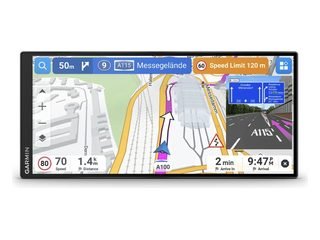 Garmin Drive 8.8: the largest screen in the current Garmin car range, an 8.8-inch ultrawide display.
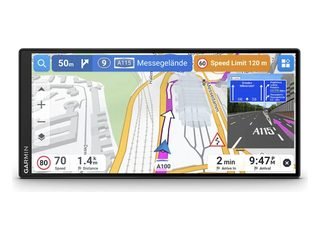 Garmin Drive 7.1: the same ultrawide format at 7.1 inches.
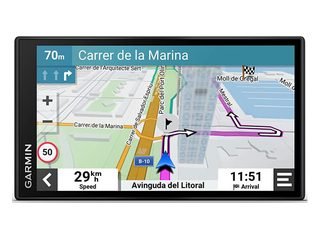 Garmin DriveSmart 66: 6-inch screen, a compact option that suits a smaller dashboard. This is the model I use in my own teaching car.
Compare them all: car sat nav comparison.
Back to the hub
This guide is part of our In-Car Technology for Learner and New Drivers section.
Please note: This is general driving guidance, not a substitute for in-car instruction. Always follow the actual lanes, road markings, signs, and signals in front of you, they take priority over anything written on this page.
Keep Building Your Driving Knowledge
Explore our free guides to build your knowledge before your first lesson.
View All Driving Guides